
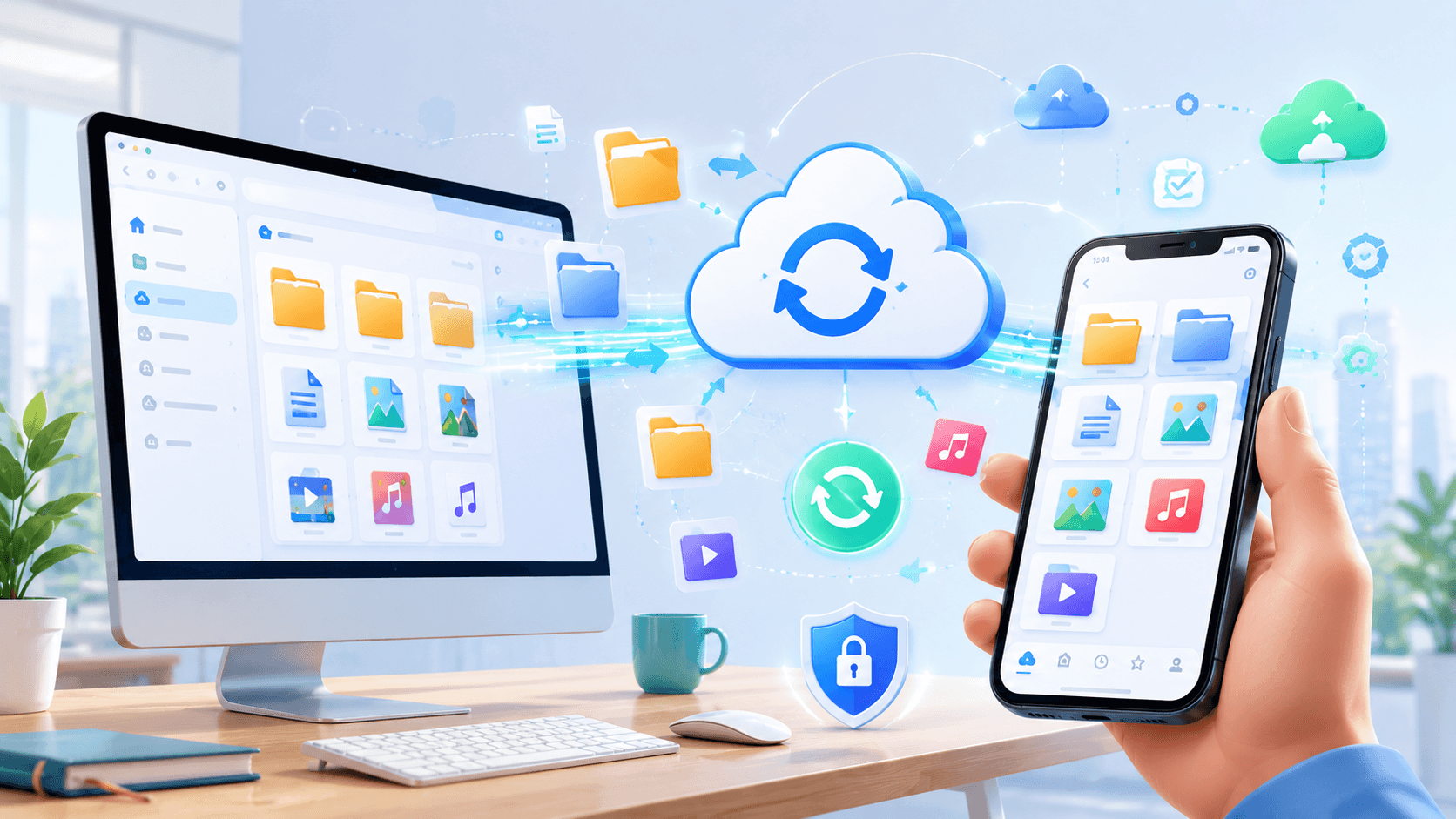
Accessing files from your desktop computer while you’re away from home or the office has become easier than ever. Whether you need an important document, a project file, a photo, or a presentation, modern technology allows you to retrieve files directly from your phone within seconds.
The best solution depends on your needs. Some methods focus on cloud storage and synchronization, while others provide full remote access to your computer. Understanding the available options can help you choose the fastest and most secure approach.
This guide explains the most effective ways to access desktop files from your phone in 2025.
Use Cloud Storage for Automatic Access
Cloud storage is the easiest and most reliable solution for most users.
When files are stored in a cloud service, they automatically become available across all connected devices.
Benefits include:
- Instant access from anywhere
- Automatic synchronization
- Easy file sharing
- Backup protection
- Cross-platform compatibility
Once files are uploaded, you can access them from your smartphone using the provider’s mobile app.
This approach works particularly well for:
- Documents
- Photos
- Presentations
- PDFs
- Work files
For everyday access, cloud storage is usually the simplest option.
Sync Important Folders Automatically
Many cloud storage services allow users to synchronize specific desktop folders.
Examples might include:
- Documents
- Desktop
- Pictures
- Project folders
Whenever a file changes on your computer, the updated version automatically appears on your phone.
Advantages include:
- No manual uploads
- Always up-to-date files
- Reduced risk of outdated versions
- Better workflow efficiency
Automatic synchronization is ideal for users who frequently switch between desktop and mobile devices.
Use Remote Desktop Software
Sometimes you need more than file access.
You may need access to the actual desktop environment.
Remote desktop software allows your phone to control your computer remotely.
This provides access to:
- Installed applications
- Local files
- Software tools
- Desktop workflows
Benefits include:
- Full computer access
- Real-time control
- Remote troubleshooting
- Access to specialized software
Remote desktop tools are especially useful for professionals who need access to desktop-only applications.
However, they generally require the computer to remain powered on and connected to the internet.
Access Files Through a Home Network
Some users prefer to access files directly from their home computer without uploading everything to the cloud.
Network-based solutions allow access to shared folders through:
- Home servers
- Network-attached storage (NAS)
- Shared drives
- File-sharing services
This approach provides more control over where files are stored.
It can also be useful for users who manage large collections of photos, videos, or backups.
However, setup is often more complex than using cloud storage.
Share Files to Yourself
For occasional access, simple file sharing can work well.
Methods include:
- Emailing files
- Messaging apps
- Temporary sharing links
- Personal cloud folders
While not ideal for frequent use, these methods are useful when you only need access to a specific file.
Many people use this approach for one-time transfers or emergency access situations.
Keep Security in Mind
Accessing desktop files remotely introduces security considerations.
Recommended practices include:
- Enable two-factor authentication.
- Use strong passwords.
- Secure your phone with a lock screen.
- Avoid public Wi-Fi when possible.
- Keep software updated.
Protecting your accounts is just as important as accessing your files.
A secure setup helps prevent unauthorized access to sensitive information.
Which Files Should Be Available on Mobile?
Not every desktop file needs to be synchronized.
Prioritize files such as:
- Work documents
- Project files
- Important photos
- Travel documents
- Presentations
- Frequently used resources
Keeping essential files available on mobile devices improves productivity while minimizing storage usage.
A selective approach often works best.
Common Problems and Solutions
Users occasionally encounter issues when accessing files remotely.
Files Not Syncing
Possible causes include:
- Internet connection problems
- Storage limits
- Disabled synchronization settings
Missing Files
Check:
- Shared folder settings
- Account permissions
- Correct cloud account login
Slow Access
Large files may take longer to load, especially on mobile networks.
Using Wi-Fi often improves performance.
Most issues can be resolved quickly by reviewing synchronization and connectivity settings.
Best Method for Different Users
Students
Cloud storage and folder synchronization are usually sufficient.
Business Professionals
Cloud storage combined with remote desktop access provides maximum flexibility.
Creative Professionals
Cloud storage and NAS systems work well for managing large files.
IT Professionals
Remote desktop solutions offer the most complete control.
The ideal setup depends on your workflow and file requirements.
Conclusion
Accessing desktop files from your phone is easier than ever thanks to cloud storage, file synchronization, and remote access technologies. Whether you need a single document or full desktop control, there are solutions available for every type of user.
For most people, cloud storage remains the simplest and most reliable option. Those who require advanced access can benefit from remote desktop tools or network-based solutions. By choosing the right method and following good security practices, you can keep important files available wherever you go.